
Configuration
After installation, configure the plugin via Window > Preferences > AI Peon > Peon Configuration.
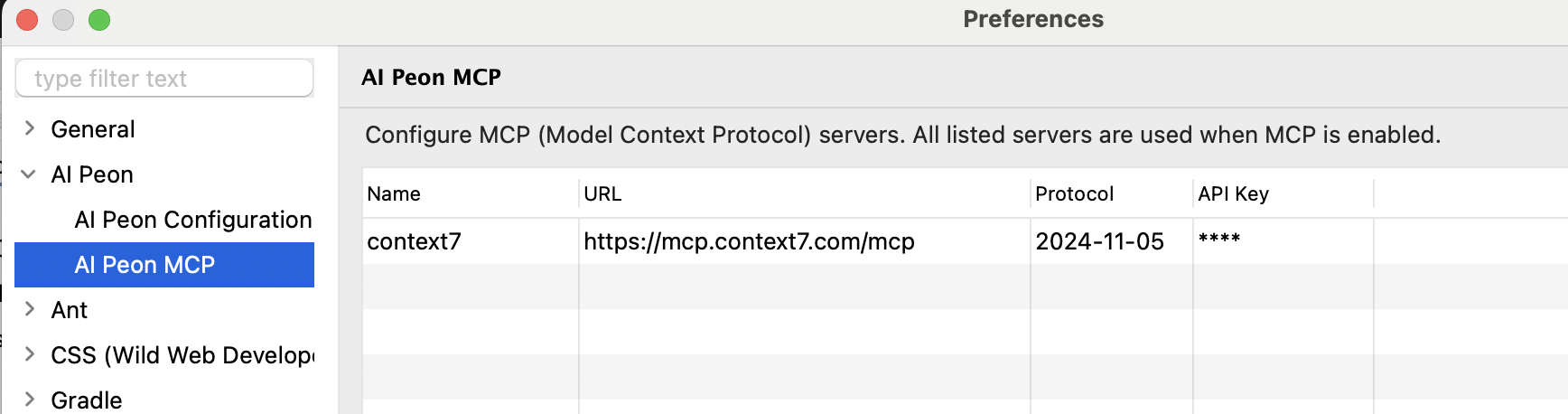
Provider Settings
The page shows the Default for all agents group with one connection block: Provider Type, URL (incl. port), API Key, Model (+ Refresh), Think (Default), Temperature, Extra body (JSON) and a Tools field — plus the Ping button below the URL field.
- Ping tests TCP connectivity (host and port) to the URL currently typed in the page, with a 3-second timeout. It does not validate the API key — the model Refresh does that implicitly.
- All of these fields are read live by Refresh and Ping: you can test a new URL, key or provider without leaving the page or clicking Apply. Cancel discards the typed values; only Apply/OK saves them.
- URL (incl. port) may be left empty where the provider has a built-in endpoint: Ollama uses
http://localhost:11434, LM Studio useshttp://localhost:1234/v1, and the GitHub providers their own endpoints. OpenAI-compatible providers have no built-in endpoint — an empty URL there is an error, and Peon reports No base URL configured — open Window > Preferences > Peon AI instead of a connection crash.
Model
This model is the base model: every other agent — PO, Plan, Review, Search, Compact and custom agents — inherits it whenever its own model field is empty (see Per-Agent Model Selection).
The Model field is a dropdown filled from your provider's model list, fetched once per connection (your base URL/key). Click Refresh to reload the list — a failed refresh keeps the previous one. Refresh and Ping always use the values you have typed in the page — no Apply needed; Apply/OK is what saves them. A model you have already configured stays in the field even if it is missing from the fetched list; you can also type a model name that is not in the list — typed models are never added to the dropdown.
Ollama
Run models locally e.g. mac.
| Setting | Value |
|---|---|
| Provider | OLLAMA |
| Model | llama3.2, codellama, qwen2.5-coder, mistral |
| Base URL | http://localhost:11434 (default — may be left empty) |
LM Studio
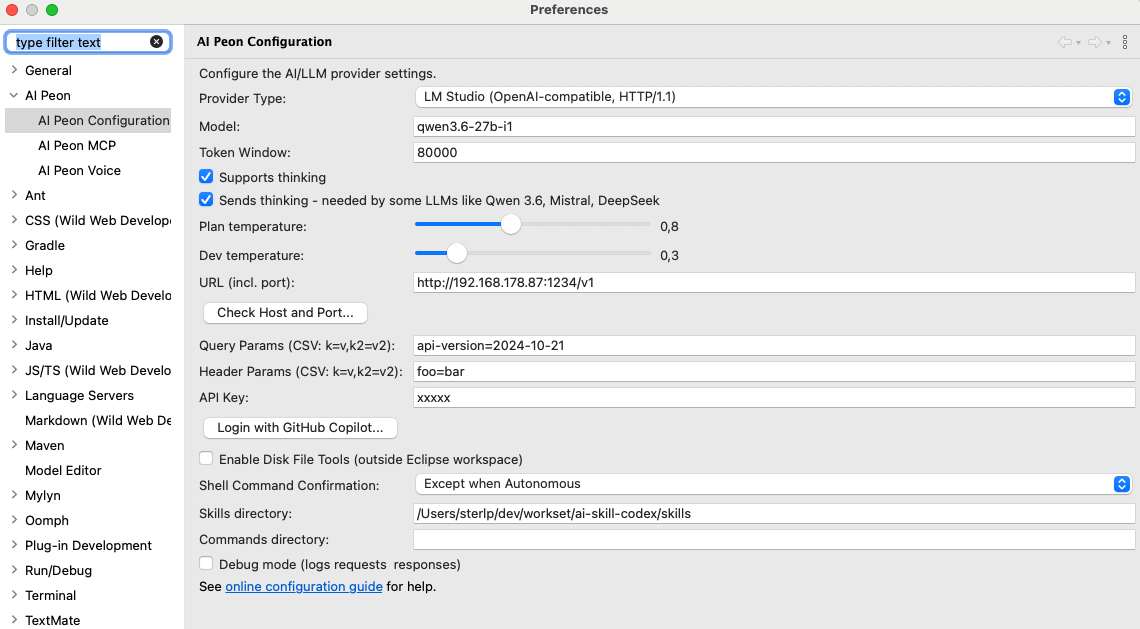
Run models locally — e.g. for windows.
| Setting | Value |
|---|---|
| Provider | LM Studio / OpenAI HTTP 1.1 |
| Model | qwen/qwen3.5-9b |
| Base URL | http://localhost:1234/v1 (default — may be left empty) |
OpenAI
| Setting | Value |
|---|---|
| Provider | OPEN_AI |
| Model | gpt-4o, gpt-4o-mini, o3-mini |
| Base URL | https://api.openai.com/v1 |
| API Key | Your OpenAI API key |
OpenAI-compatible APIs
Any OpenAI-compatible server (LM Studio, OpenRouter, LocalAI, vLLM, …) works by changing the Base URL. Set the API Key to a dummy value like none if the server does not require one.
Google Gemini
| Setting | Value |
|---|---|
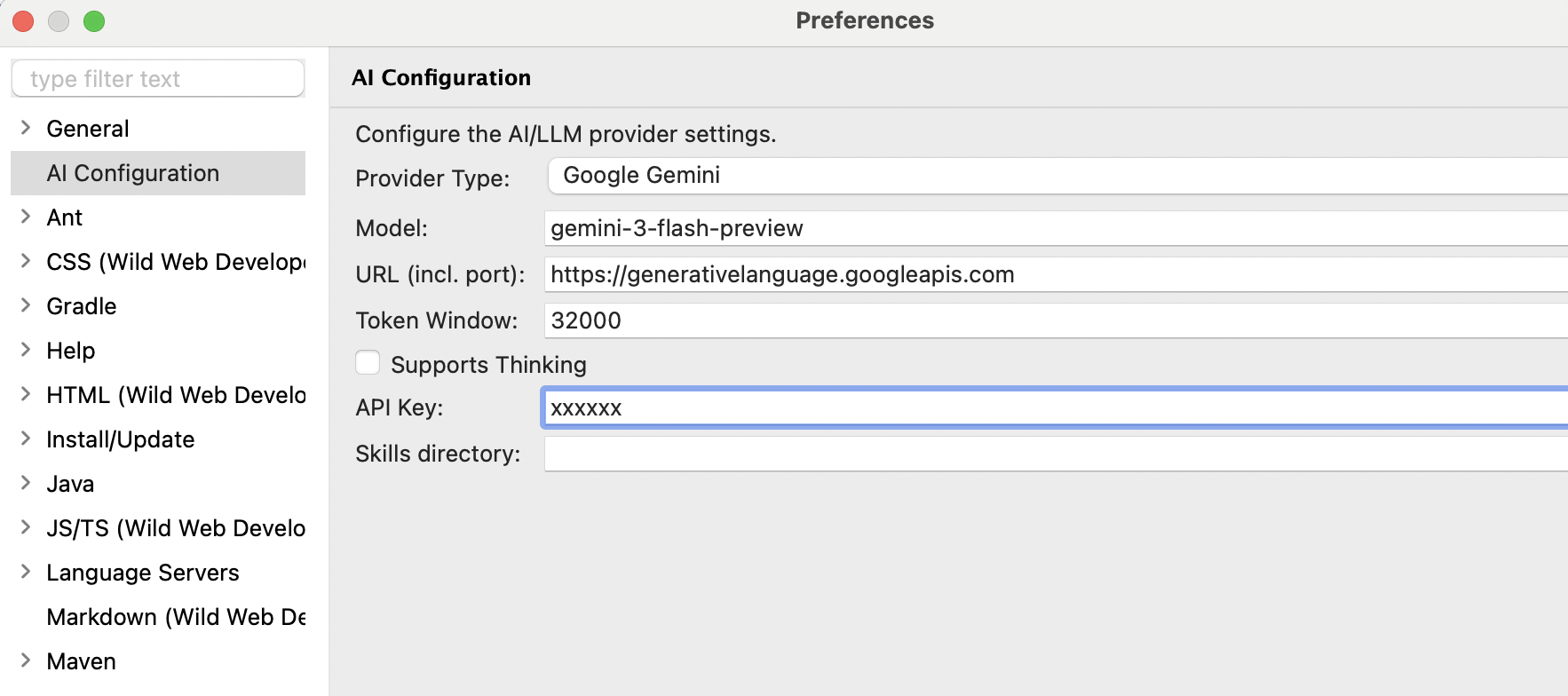
| Provider | GOOGLE_GEMINI |
| Model | gemini-2.0-flash, gemini-2.5-pro-preview-03-25 |
| Base URL | (leave empty) |
| API Key | Your Google AI Studio API key |
Mistral AI
| Setting | Value |
|---|---|
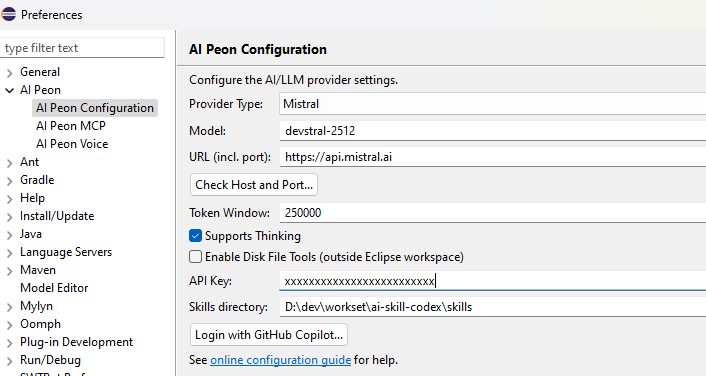
| Provider | MISTRAL |
| Model | mistral-large-latest, mistral-small-latest, devstral-latest |
| Base URL | (leave empty) — set https://api.mistral.ai in Voice preferences if using voice input |
| API Key | Your Mistral API key |
GitHub (Marketplace)
Using the GitHub Models marketplace with pay-per-use billing.
| Setting | Value |
|---|---|
| Provider | GitHub (PAT) |
| Model | Varies; use model picker to list available models |
| Base URL | https://models.inference.ai.azure.com (default) or custom endpoint |
| API Key | Your GitHub Personal Access Token (PAT) with models:read scope |
Authentication:
- Generate a GitHub PAT with
models:readscope - Paste the token in the API Key field
- Click Ping to verify connectivity
Available models: Use the Model picker to list all marketplace models you have access to. Models are filtered to those supporting tool calling only.
GitHub Copilot (Subscription)
Access Claude Sonnet, Claude Opus, Claude Haiku, GPT-5, and more as a GitHub Copilot subscriber.
| Setting | Value |
|---|---|
| Provider | GitHub Copilot (subscription) |
| Model | Claude Sonnet, Claude Opus, Claude Haiku, GPT-4o, GPT-5-mini, etc. |
| Base URL | (leave empty for github.com; enter custom domain for GitHub Enterprise) |
| API Key | (leave empty; OAuth token obtained via login button) |
Authentication:
- Click Login with GitHub Copilot... button in the preferences
- Select GitHub deployment type (github.com or GitHub Enterprise)
- Complete the device flow authorization in your browser
- The plugin stores your OAuth token and auto-selects the
GITHUB_COPILOTprovider - Use the Model picker to list available Copilot models (Sonnet, Opus, etc.)
Requirements:
- Active GitHub Copilot subscription (Individual $10/month, Business, or Enterprise)
- Copilot access enabled on your GitHub account
Model availability: Models listed depend on:
- Your Copilot subscription tier
- Regional availability
- GitHub's current model catalog
Difference: Marketplace vs. Subscription
| Marketplace (PAT) | Copilot (OAuth) | |
|---|---|---|
| Product | GitHub Models marketplace | GitHub Copilot subscription |
| Auth method | Personal Access Token | OAuth Device Flow |
| Billing | Pay-per-use | Monthly subscription |
| Models | Public marketplace catalog | Copilot subscriber models (Claude, GPT-5) |
| Provider name | GITHUB_MODELS | GITHUB_COPILOT |
| Use case | One-off testing, marketplace exploration | Primary AI assistant with Copilot benefits |
Settings
Token Window
The Token Window setting controls how many tokens of conversation history are sent to the AI model with each request. In the preferences it is the Auto compact after: integer field, and it is stored in LlmConfig.autoCompactAfter.
| Setting | Value |
|---|---|
| UI Label | Auto compact after: |
| Preference Key | llm.tokenWindow (PREF_TOKEN_WINDOW) |
| Config Field | LlmConfig.autoCompactAfter |
| Default Value | 80000 tokens |
| Type | Integer |
| Editor Component | IntegerFieldEditor in AiConfigPreferenceView |
Important Distinction: Token Window vs Message Memory Buffer
| Component | Purpose | Limit | Configurable |
|---|---|---|---|
| Token Window | Max token window a model supports | ~256.000 (configurable) | Yes - via this setting |
| Max output tokens | Max amount of token a model may generate | 0 (none) | see advanced configuration |
Explanation: The token window limits what context is sent to the LLM for each request. Inside the tool call chain Peon checks the context after every tool round against this budget: when the budget is exceeded, the conversation is compacted directly (the status line 🗜 Direct compact … marks it); when it sits within the top 5 % of the budget, the LLM gets a message to use the compact session tool itself.
Important Considerations
Token counting includes both directions: The token window counts both user messages AND AI model responses in the conversation history.
Provider auto-truncation: If you set a value larger than your provider supports, they may:
- Automatically truncate older messages (silently)
- Reject the request with an error
- Return degraded responses
- Locally it will just crash your system
Check provider documentation: Before setting very high values, verify your specific model's maximum context window in the provider's documentation.
Testing recommended: After changing token window, test with a longer conversation to ensure the AI can reference earlier messages correctly.
Token estimation vs actual tokens: The value you set is an estimate; actual token counts vary by language and model encoding.
Thinking Support
The Think (Default) field on this page sets the default think level for the base connection — and it is the value every agent without its own Think inherits:
- An agent with its own Think value uses it — an explicit off wins even when a default is set.
- An agent with an empty Think inherits the default from this page.
- Empty default and empty agent → unset: nothing is sent, the model decides.
Per-agent Think values are configured on the Advanced Configuration page (the same think field custom agents use in their frontmatter).
Each Think value is a single string: empty = unset; on the string providers (OpenAI family, LM Studio) any other value is sent verbatim exactly as stored (none goes out as reasoning.effort=none, a legacy false as reasoning.effort=false); Ollama interprets off tokens (false / off / no / nein / none, case-insensitive → think:false, anything else → think:true); Anthropic keeps its own translation (off = nothing, true = built-in model mapping, a concrete value as-is). The field's form follows the selected provider (editable dropdown for Ollama, value list for the OpenAI family and Anthropic, free text for LM Studio, hidden for Gemini and Mistral). That also covers mixed setups — e.g. planning with one provider and implementing with another.
The Resend model thinking checkbox controls whether the model's own reasoning is shown and sent back on the next turn (needed by most LLMs like Qwen 3.x, Mistral, DeepSeek). It is independent of the per-agent Think value.
Temperature
The Temperature field sets the sampling temperature of the Dev agent — the default agent of this page. It is a request-level value like Think: it is not inherited by any other agent, which each have their own Temperature field on the Advanced Configuration page.
- Empty = unset — no
temperatureparameter is sent, the provider or model chooses its default. This is important for GPT-5 and o-series models, which reject non-default temperature values. - Enter a number (e.g.
0.7) to send it with every Dev agent request. - An invalid value is saved but ignored when requests are built: Peon logs a warning and omits
temperature. - A top-level
temperaturein the Extra body (JSON) field below wins over the field and is sent only once.
Extra body (JSON)
The Extra body (JSON) field sets raw JSON that is merged into the Dev agent's request body — the default agent of this page. It is the same field custom agents use via the extra_body frontmatter key, and the place where prompt caching is configured for the default agent.
The field follows the provider live: it appears as soon as you switch to a provider that supports an extra body — OpenAI, LM Studio, GitHub Copilot and Anthropic — and hides again for Ollama, Google Gemini, Mistral, GitHub Models and OpenAI-official. No Apply, no tab switch.
- Hidden ≠ deleted: switching to a provider without extra-body support hides the field but never deletes the stored JSON — switch back and it is there again. While hidden, it is simply not sent.
- Empty = unset — no extra body is sent.
- Three paste-ready example buttons (GPT / Claude / llama.cpp) sit under the field; clicking one replaces the current content (see Extra Body / Prompt Caching).
Tools
The Tools field restricts which tools the Dev agent — the default agent of this page — may call. It is a comma-separated list of tool names or prefixes (matched with Java startsWith); it is not inherited by any other agent, which each have their own Tools field on the Advanced Configuration page. The same allowlist semantics apply to custom agents via their tools frontmatter — one mechanism for every agent type.
- Prefix /
*/ exact:eclipseenables everyeclipse*tool,*enables all tools, an exact name enables just that tool. A trailing*on any token is an optional wildcard suffix — the same meaning in allow and deny tokens:eclipse*≡eclipse(prefix match);*alone stays the All-Token. !negation (allow-then-deny): a!prefix removes tools after the allowlist is applied, and the exclusion always wins —eclipse, !eclipseWriteFilekeeps theeclipse*family except the write tool. A list of negations only means all tools minus the exclusions (!debugJava*= everything except the debug family).- Empty = all tools.
- Bare
!(no prefix) is a validation error: Peon refuses to save and leaves the field unchanged.
Click Preview active tools… next to the field to see the exact tool set for the value you have typed — no Apply needed.
Testing the Connection
- In the Peon Configuration page, click Ping to check that the URL (host and port) is reachable — it uses the values currently typed, no Apply needed
- Click Refresh next to the Model field to load the model list for the current provider/URL/key
- Open the Peon AI chat view and type a test message like "Hello" — if configured correctly, you should receive a response
Troubleshooting
If connection tests fail, verify:
- The server is running and accessible at the specified URL
- Firewall settings allow connections to the port
- For local servers (Ollama, LM Studio), ensure they're started before testing